Automate Outlook Email Back-Up with VBA
Generate emails backup in HTML format that can be read without Outlook Account

What happens if you want to keep records of several thousand emails and open them later without depending on Outlook?
💌 New articles straight in your inbox for free: Newsletter
Why would you need such a tool?
How are you using Outlook?
You use Outlook daily to handle a large number of emails and
- You do not have time to invest in cleaning your records frequently
- You want to keep records of your emails that can be read without Outlook
- You believe that Outlook solutions for backup management are too time-consuming
- You want to perform NLP Analysis on a large number of emails
This tool will answer your needs by
- Keeping records of your emails in an Excel file, including
Sender Name, Sender Address, Receiving Time, Email Type, Subject, Body (Content of your email) - Saving a copy of each email in HTML format that can be opened with your browser
- Saving email attachments in a separate folder
Prerequisite
You do not need any prior knowledge of Visual Basic for Applications (VBA) to follow this tutorial.
Each step is detailed and the full code can be found in my Github repository.
How does it work?
This solution will be an Excel-VBA file with your macro that will perform the information extraction from your email files and keep records in an Excel sheet.
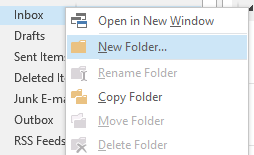
Step 1: Copy your emails to a folder (Folder In)
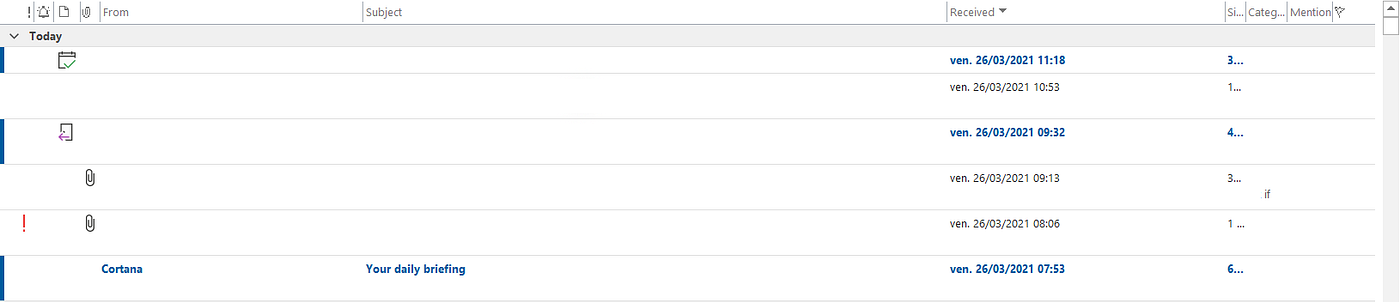
Select all the emails and drag the selection to a folder (Folder In).
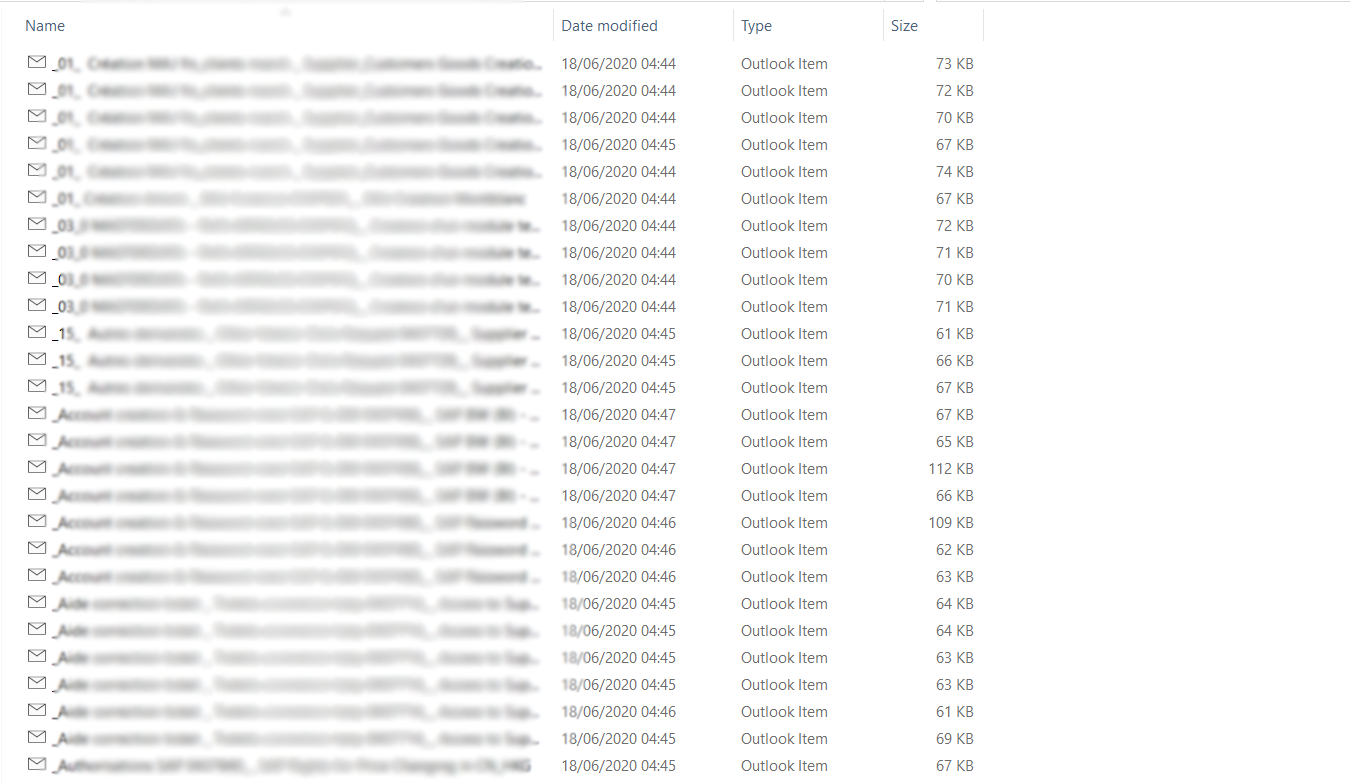
These emails are stored in (.msg) format in this folder that will call (Folder In).
Step 2: Run the Excel VBA Macro

Click on Macros -> View Macros -> Select SaveMSG_as_HTML
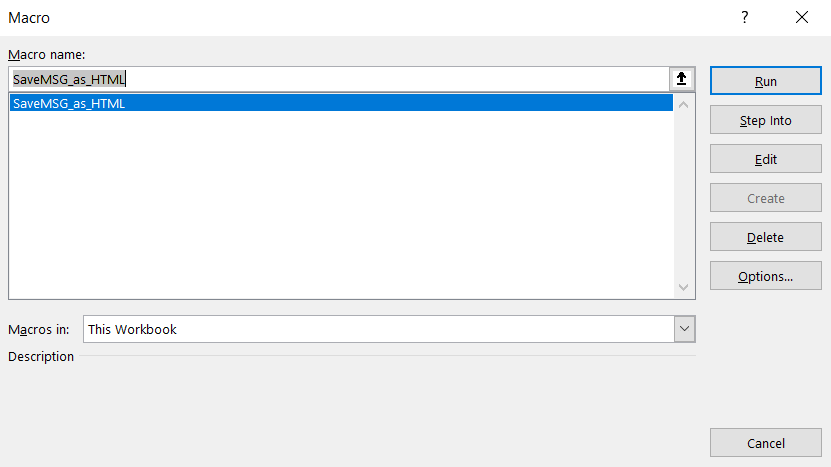
Click on Run Button
Step 3: Results
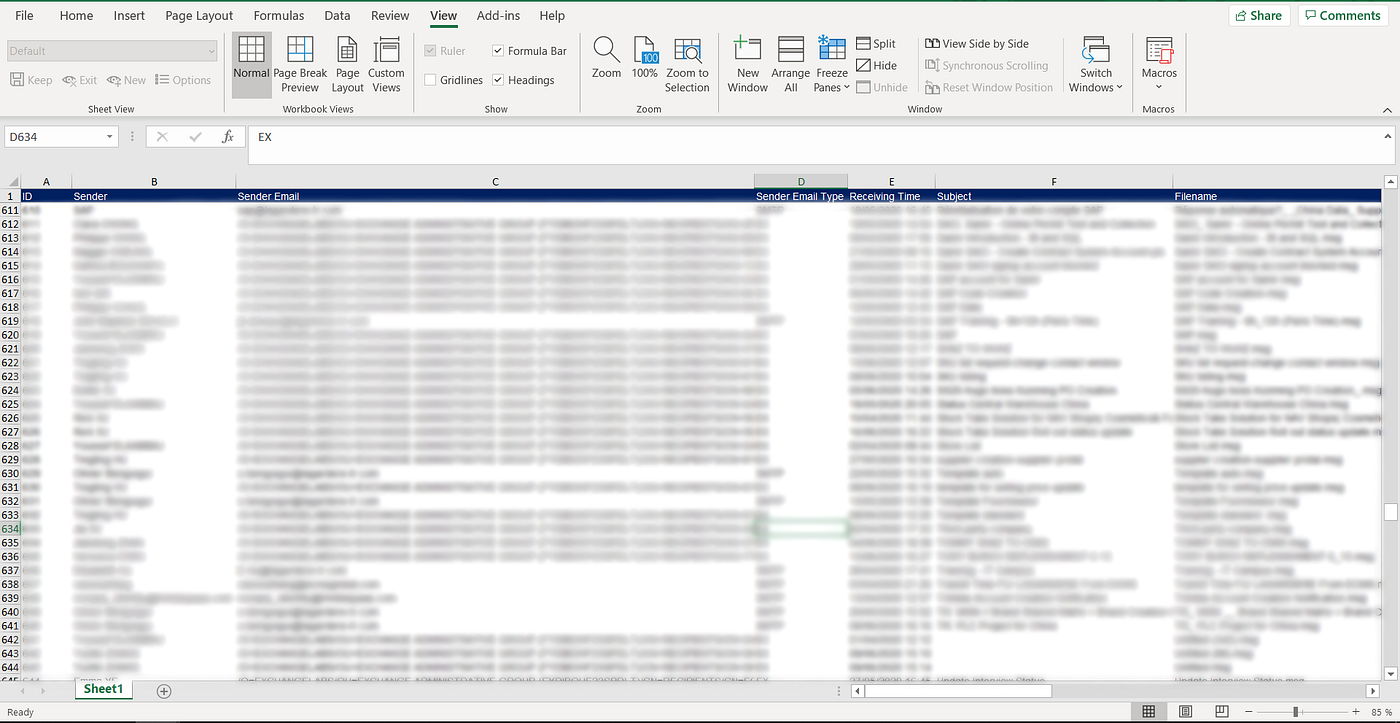
Email Records with detailed information including Sender Name and Address, Subject, Body and attachment filename.
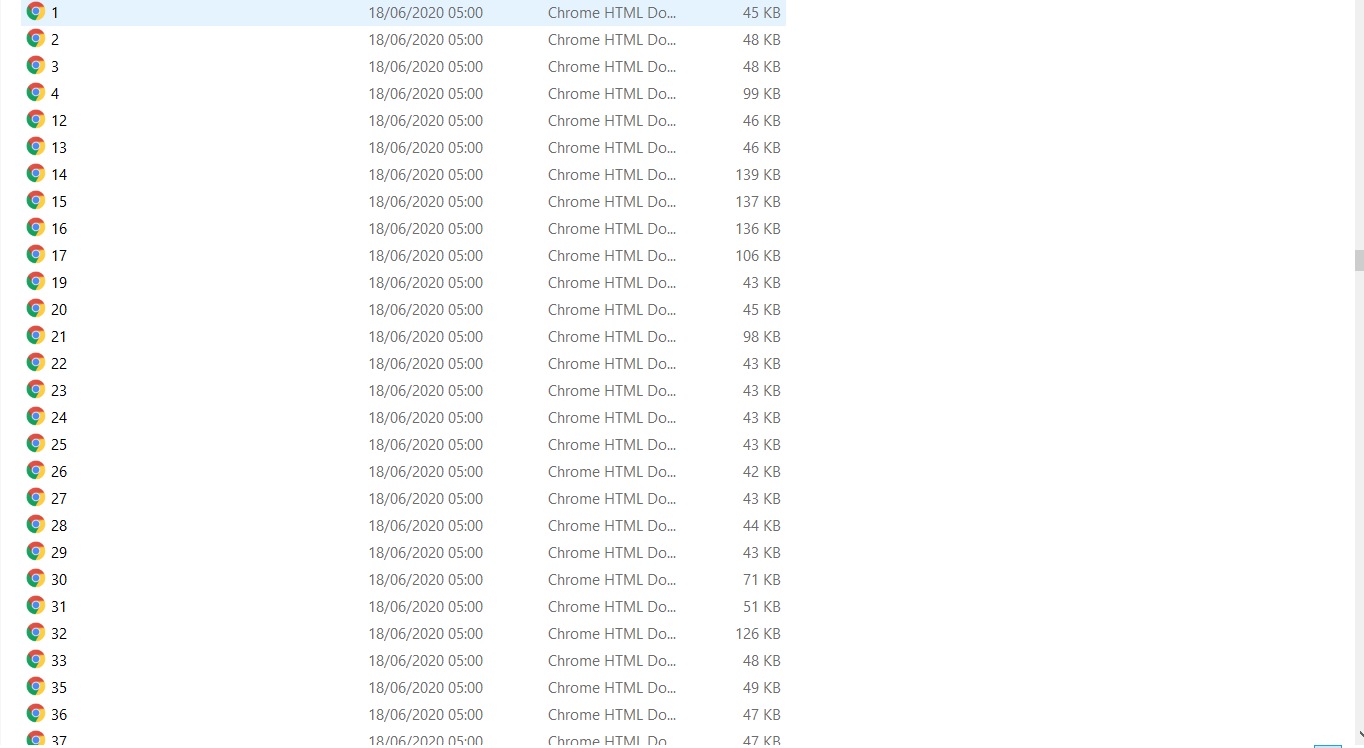
Emails in HTML format: file n refers to the email n in your Excel File
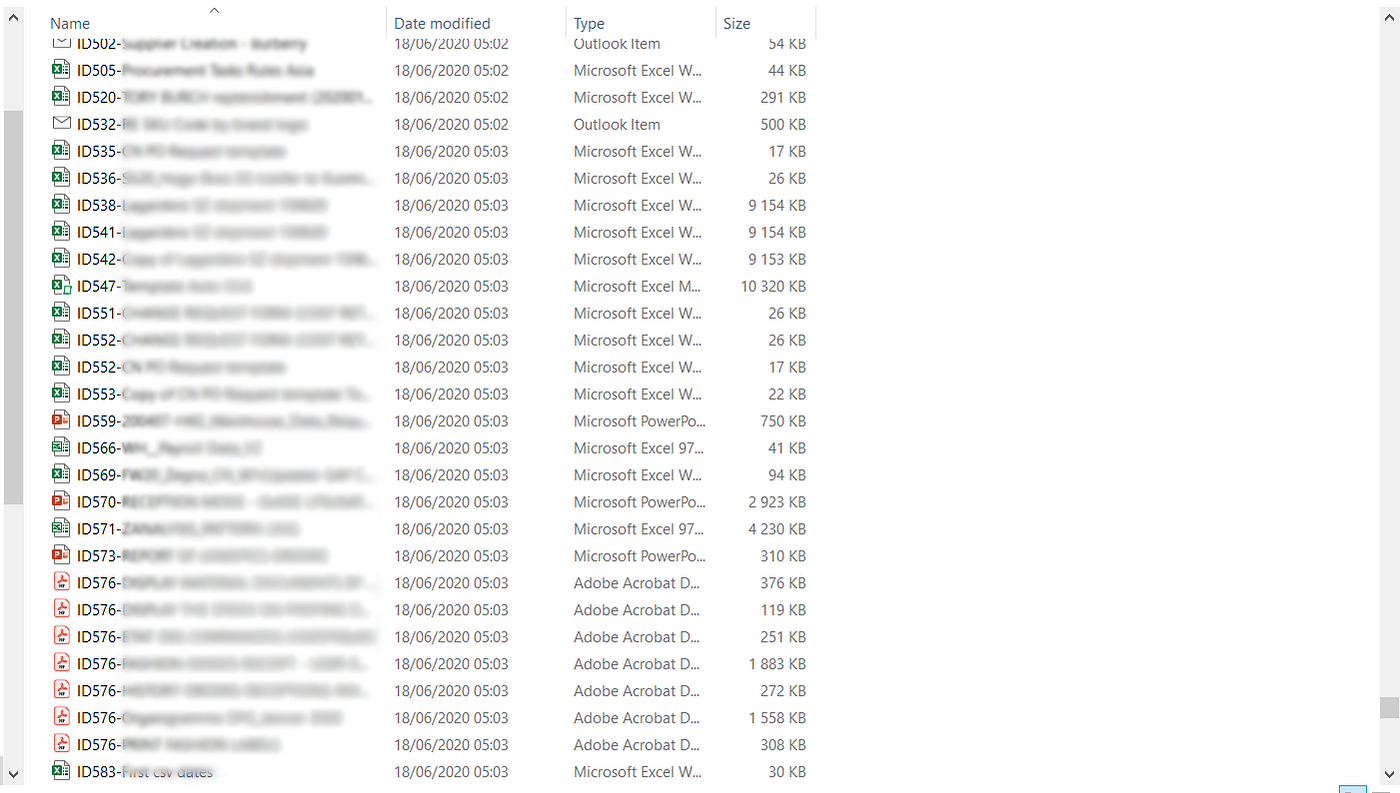
Attachment records: ID{N}-AttachmentName refers to the attachment of email number N with the original filename AttachmentName
Build your tool
Step 1: Activate Macros on Excel
To be able to write and run macros you need to active VBA Macros in Excel.
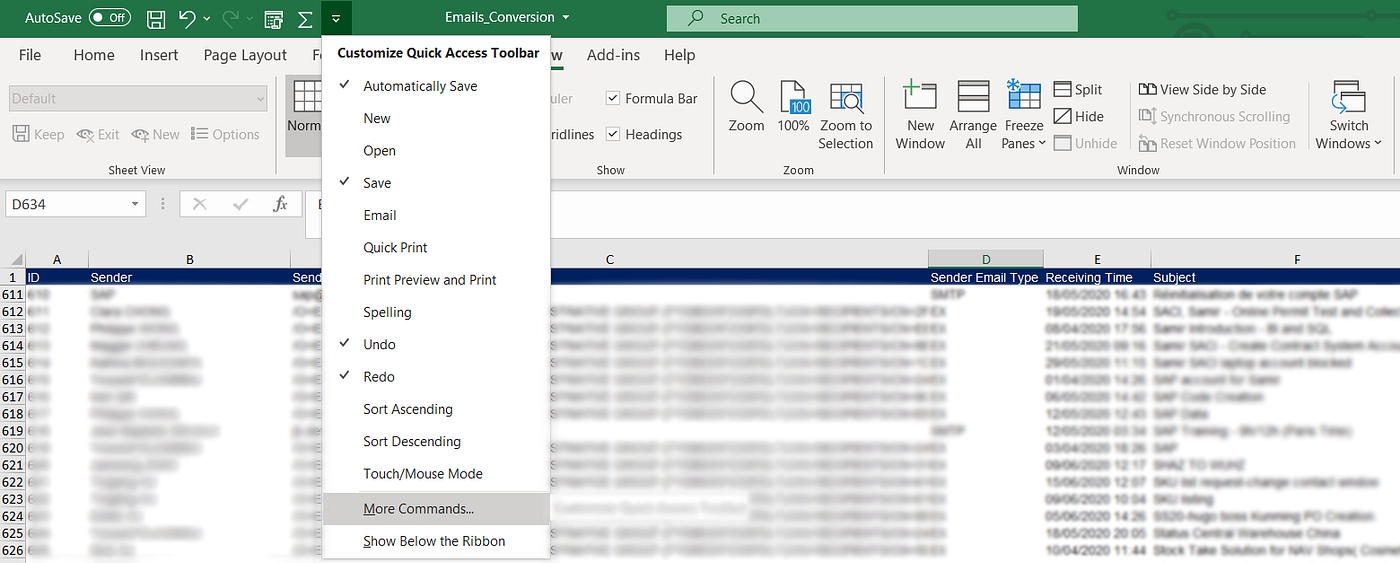
Go to the Options tab and click on More Commands
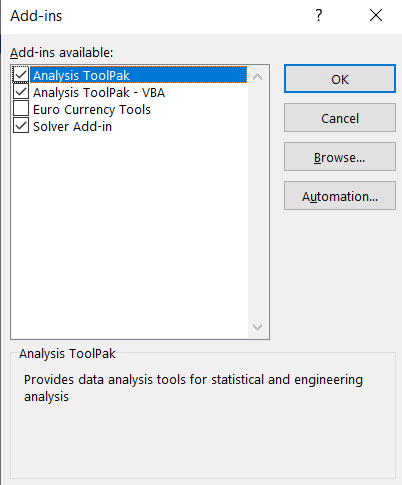
Select Add-Ins -> Click on Go -> Select Analysis ToolPak -VBA
Step 2: Create your Macro
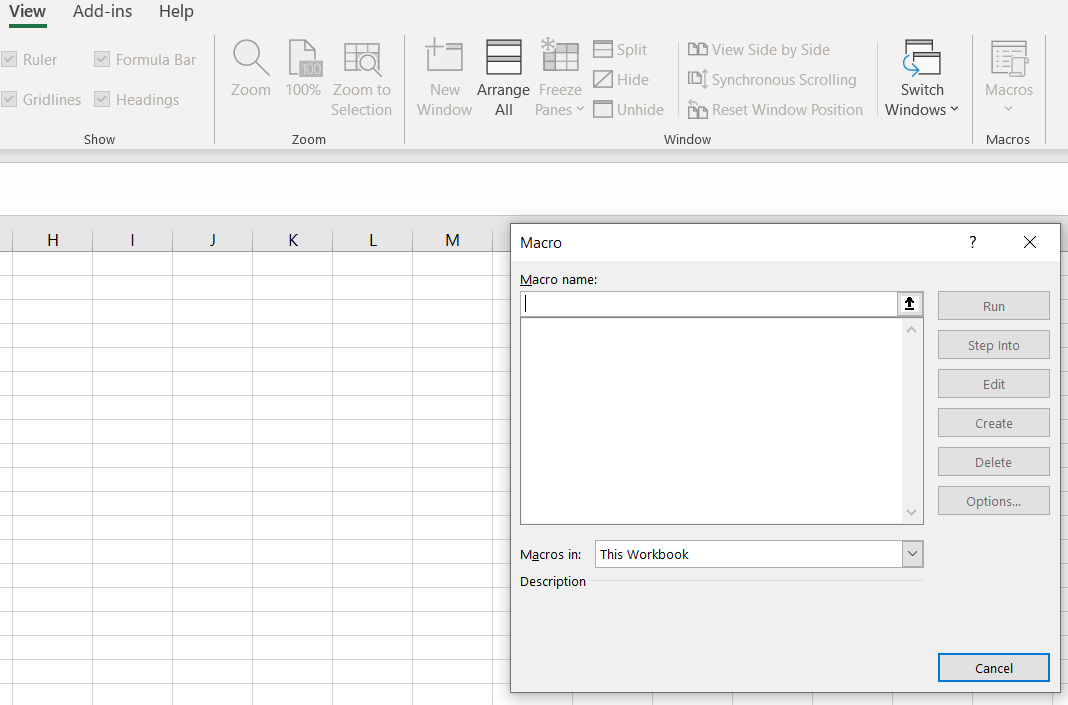
View Tab -> Select Macros -> View Macros -> Name it: SaveMSG_as_HTML
Step 3: Initialize variables
- strIn: copy the path where you pasted your emails (.msg)
- strOut: the path where you want to save emails in HTML format and the associated attachments
Step 4: Write the loop
Step 5: Run the Macro
Next Steps
Now that you have records of all your emails in a single Excel sheet
- Perform analysis: frequency of email exchanges, NLP and sentiment analysis, most frequent sender, keywords used […]
- Build an automation tool to improve your productivity: Minute of Meetings Collection, Attachments Consolidation (for instance, Excel reports sent daily)
Update [03/2026]
This kind of automation is now outdated, given the availability of new generative AI models.
For the last implementations we did, I used n8n, coupled with multi-modal models, to understand content, generate code, build dashboards, and use tools for decision-making.
For more details, here is a complete tutorial
About Me
Let’s connect on LinkedIn and Twitter, I am a Supply Chain Engineer who is using data analytics to improve logistics operations and reduce costs.
If you’re looking for tailored consulting solutions to optimise your supply chain and meet sustainability goals, please contact me.