
How to Use an API Without Coding
A No-Code method to connect to any API using Google Sheets for users without any experience in coding

In computer science, an application programming interface (API) is a set of rules that allows multiple programs to communicate with each other.
If you have limited coding experience, you may have never used it yourself. However, you can be sure that the apps on your smartphone or computer are using APIs.
Even if you’re a human being, you can find many interesting APIs that can improve your productivity, bring some fun or just solve some of your daily issues.
In this article, I will share two methods for connecting to and automatically retrieving data from APIs without writing code in Google Sheets.
💌 New articles straight to your inbox for free: Newsletter
Solution
Final Solution
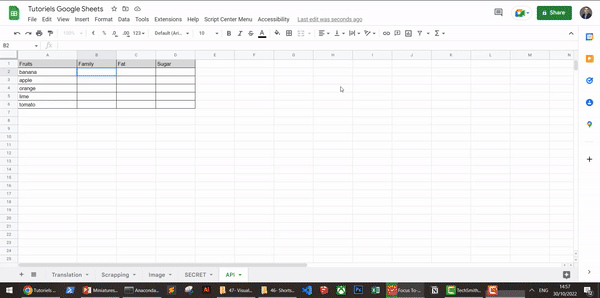
The final solution will look like the animated GIF below. With a simple formula in spreadsheet software (Google Sheets or Excel) you’ll be able to pull out data from any API.
Example
In this article, I will be using the example of a very cool API FruityVice that provides information about fruits.
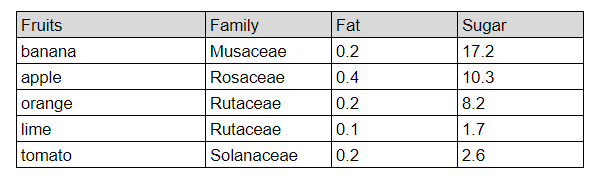
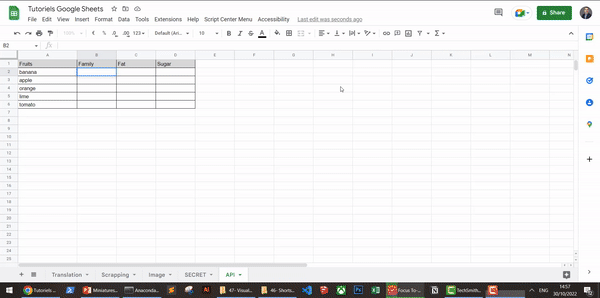
In the first column, you can find a list of fruits we want information about. And we call the API to get the:
- Family name in the first column
- Amount of Fat in the second column
- Amount of Sugar in the third column
Then we just need to enter a formula to call the API in cell B2 and drag it down the column to get the full scope.
Implementation
Call the API, get the response and filter
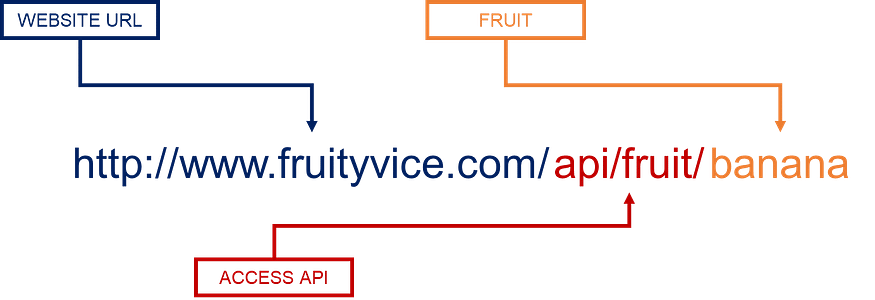
To call the API, send a GET request using the syntax below.
It does not require any API key.
I took it as an example:
- The blue part is the address of the website: you can go there to check the documentation
- The red part will give you access to the API
- The orange part is where you need the unique input parameter: the fruit name in English
It will return a response in JSON format,
We need to understand the way the API response is structured to extract the information we want,
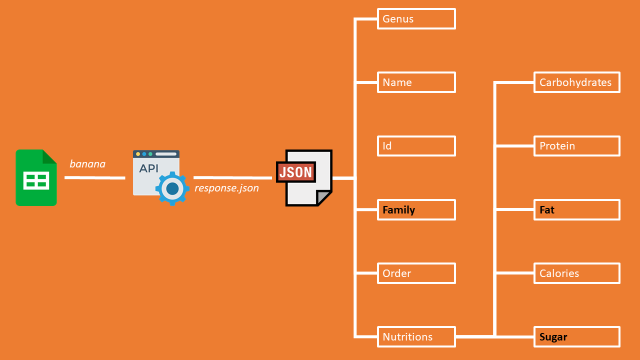
What is interesting for us is,
family: of the fruitnutritions/fat: the fat quantitynutritions/sugar: the quantity of sugar
Add a function to read JSON: importJSON
In order to perform the query and parse the JSON we will import a function shared by paulgambil in his GitHub repository.
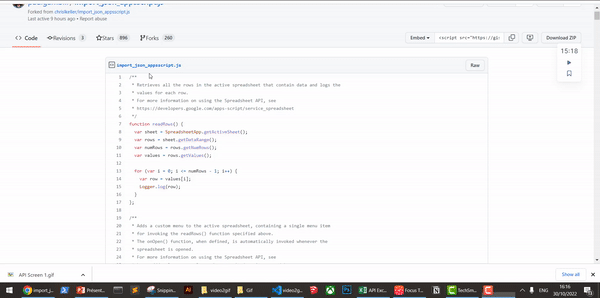
- Grab the code in the GitHub repository and copy it
- Go to your extensions menu in Google Sheets
- Create a new script and name it importJSON.gs
And now your function importJSON is available.
Parse the API JSON response
Write the query
You can now start to write the formula in the cell
B2=importJSON("https://www.fruityvice.com/api/fruit/"&A2;
"/family,/nutritions/fat,/nutritions/sugar";
"noHeaders,
Truncate")
/family, nutritions/fat, nutritions/sugar: specify the three pieces of information we want to get from the API response
Drag the formula
And after dragging to the end of the column, the importJSON function will automatically paste the values into the correct cells.
You can find more productivity tips and Google Sheets tutorials on my YouTube Channel
Next Steps
Import tables from URL
In this short tutorial, 1 min youtube short, I share another method to extract data from an URL.
Why not Excel?
Excel has its own function, WEBSERVICE, to perform an API query. However, there is no built-in function to parse the JSON response, so you have to find a way to do it with only Excel formulas.
Therefore, I would prefer to use Google Sheets.
Have you heard about n8n?
Using this no-code platform, you can do it quite easily.
In this tutorial, I am using the same API to teach the basics of this widely used automation tool.
Where to go next
- Automate Excel Reports with Python: The Four Patterns That Cover Most of the Work: Four patterns to automate the Excel reports an operations team rebuilds every week
- Automate Outlook Email Back-Up with VBA: Generate emails backup in HTML format that can be read without Outlook Account
- What Is RPA? Robotic Process Automation: Use Python to automate business processes, process transactions, and communicate with other digital systems.
Related videos
About Me
Let’s connect on LinkedIn and Twitter. I am a Supply Chain Engineer who is using data analytics to improve logistics operations and reduce costs.
If you’re looking for tailored consulting solutions to optimize your supply chain and meet sustainability goals, please contact me.